Enabling Ligatures in Avalon
Avalon natively supports OpenType fonts, which add a variety of typographic features that are unavailable in True Type fonts. One of those features is Ligatures, an ancient readability technique that has been around for hundreds of years. We’ve enabled OpenType features throughout the platform; to illustrate, I’ll use a Button to show ligatures using an OpenType font, Palatino Linotype (which comes with Windows).
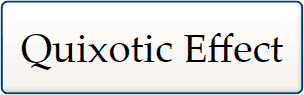
Notice how the adjacent Fs in “Effect” are connected. This is an example of a standard ligature, which is enabled by default in Avalon. The markup for this button is shown below:
<Button FontFamily="Palatino Linotype" FontSize="20" Padding="10">
  Quixotic Effect
</Button>
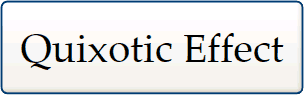
Because standard ligatures are enabled by default, you have to do extra work to disable them. I’ve provided the screen shot and markup for the button with standard ligatures disabled below:
<Button FontFamily="Palatino Linotype" FontSize="20" Padding="10">
  <Inline Typography.StandardLigatures="False">
    Quixotic Effect
  </Inline>
</Button>
Another OpenType feature are discretionary ligatures, these are optional ligatures that are part of an OpenType font, but aren’t enabled by default because they tend to be historical or ornate, meaning they don’t particularly enhance readability. The image below illustrates the same Button with discretionary ligatures enabled:
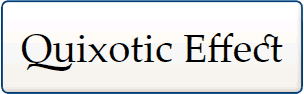
Notice the swash that goes from the Q to underneath the U, as well as the connection between the c and t. Once again, the markup:
<Button FontFamily="Palatino Linotype" FontSize="20" Padding="10">
  <Inline Typography.DiscretionaryLigatures="True">
    Quixotic Effect
  </Inline>
</Button>